Accessibility Triage
This document is a high-level guide for identifying and prioritizing common accessibility barriers in course materials. Like medical triage, it is not meant to address every issue. Instead, it helps VCU Faculty recognize which issues may create the greatest barriers for students and where to begin making improvements.
This document highlights three levels of accessibility concerns, with examples, tips, and resources for each. For a more detailed review of specific accessibility requirements, use the VCU Accessibility Checklist.
These rules apply to course material you share digitally with students—such as content posted in Canvas, emailed to students, or linked from course materials.
Level One (Critical)
-
Audio & Video Captions
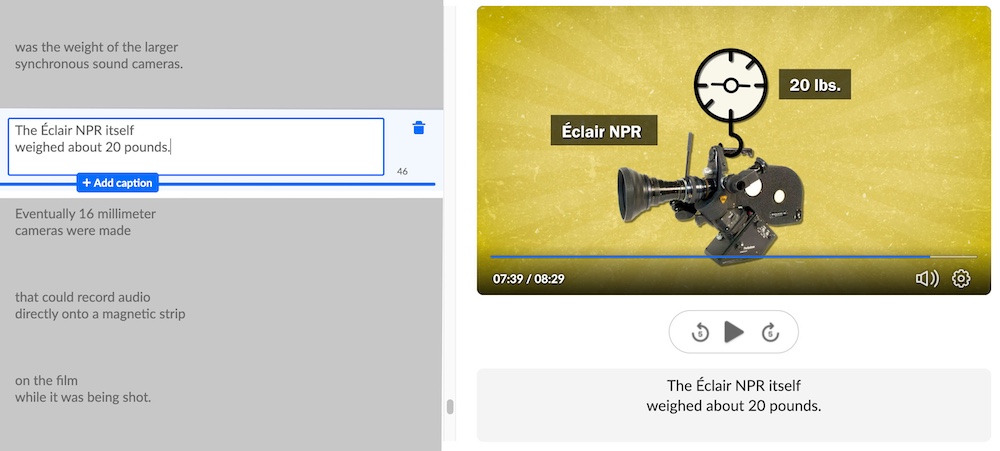
- Rule: Captions provide on-screen text for spoken dialogue and describe essential visual content such as mathematical equations.
- Tip: This rule applies to videos you create and videos sourced from YouTube or Vimeo. If you cannot add captions yourself, provide a transcript.
- How to: Kaltura’s Guide to Using the Captions editor
- Example:
-
PDFs
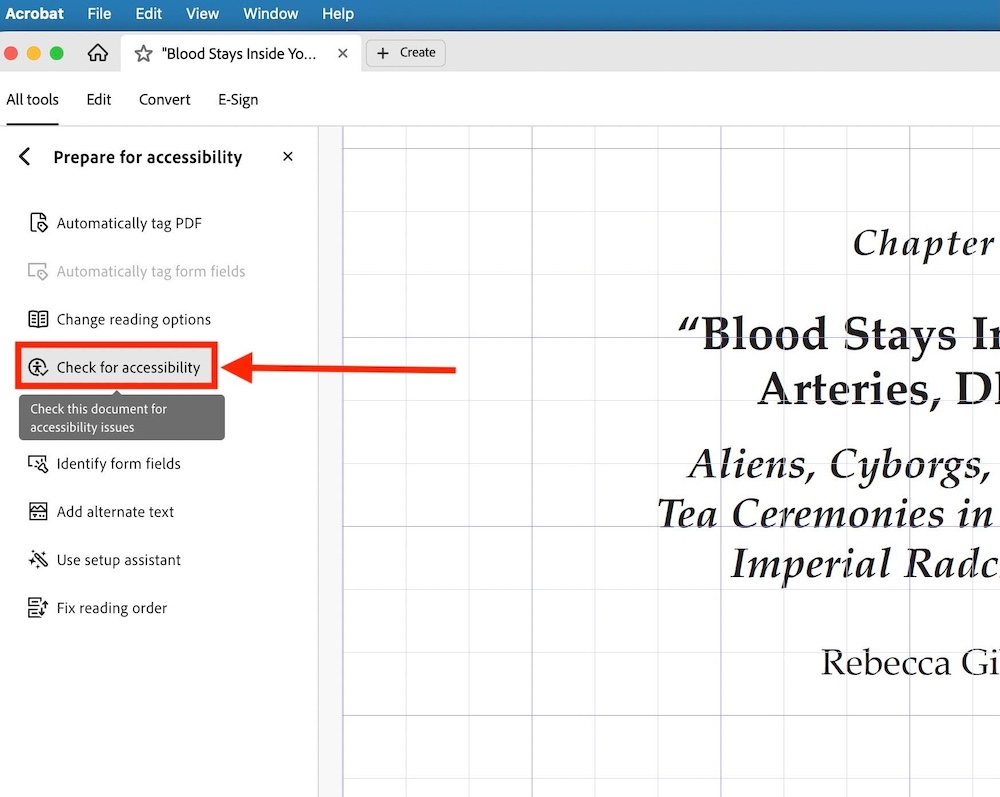
- Rule: PDFs must use real, searchable text and be properly tagged so content is read in a logical order. Images need text descriptions, and tables must be organized so their meaning is clear.
- Tip: Because PDFs are difficult to remediate, use VCU Library permalinks for journal articles or book chapters, and fix the source document in Microsoft Word.
- How to: Create and verify PDF Accessibility (Acrobat Pro)
- Example:
-
Images Alt Text
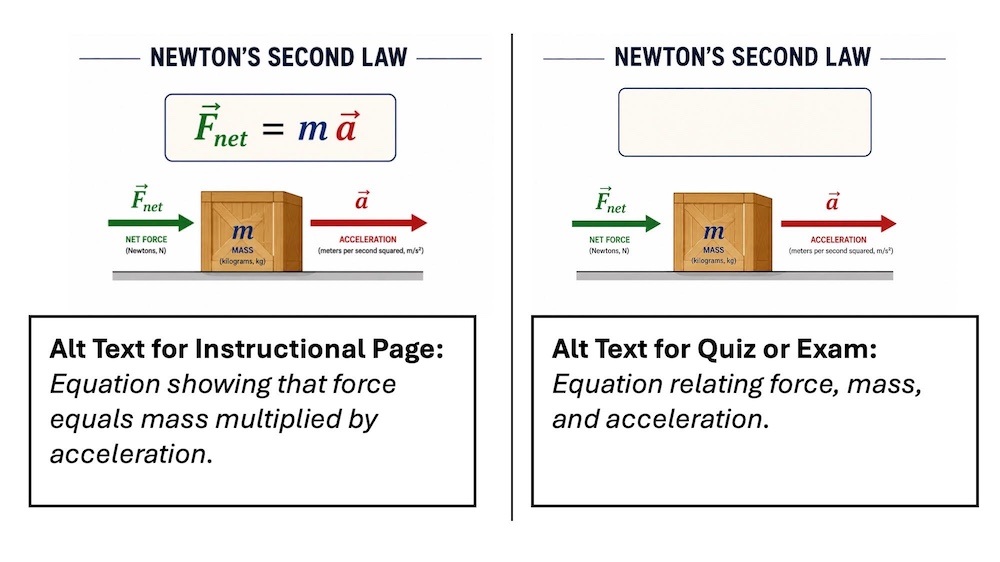
- Rule: Alt text provides the essential information students need to understand and use an image. Complex charts or diagrams require a longer text description outside the image.
- Tip: In quizzes and exams, alt text gives students access to the information shown—without interpreting or revealing the answer.
- How to: Web Aim Alternative Text
- Example:
Level Two (Important)
-
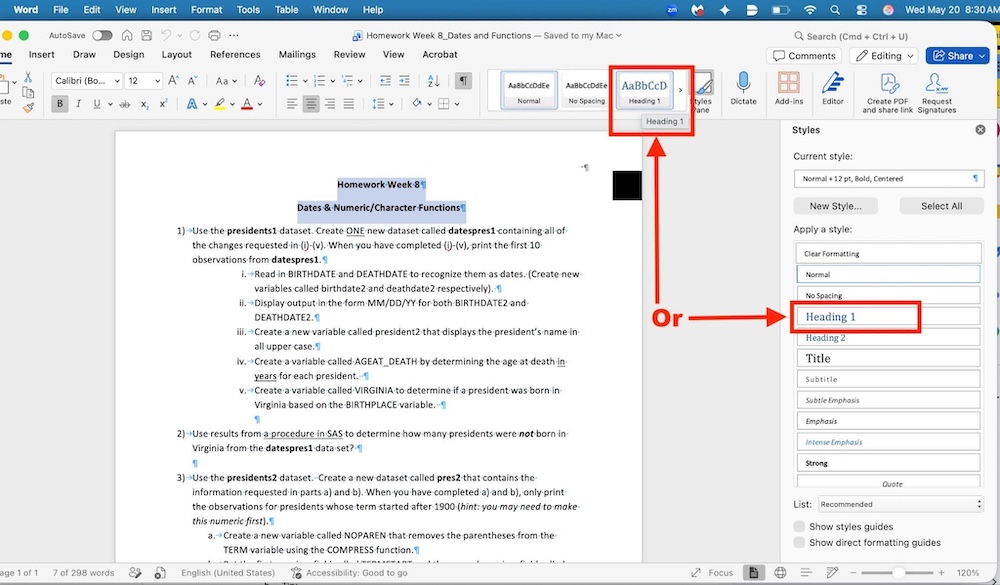
Headings
- Rule: Use built‑in heading styles (Heading 1, Heading 2, etc.), not just large or bold text, to structure Canvas pages, documents, and slides.
- Tip: Heading styles can control formatting for you—using styles instead of manually formatting text saves time and makes updates easier.
- How to: W3C Headings
- Example:
-
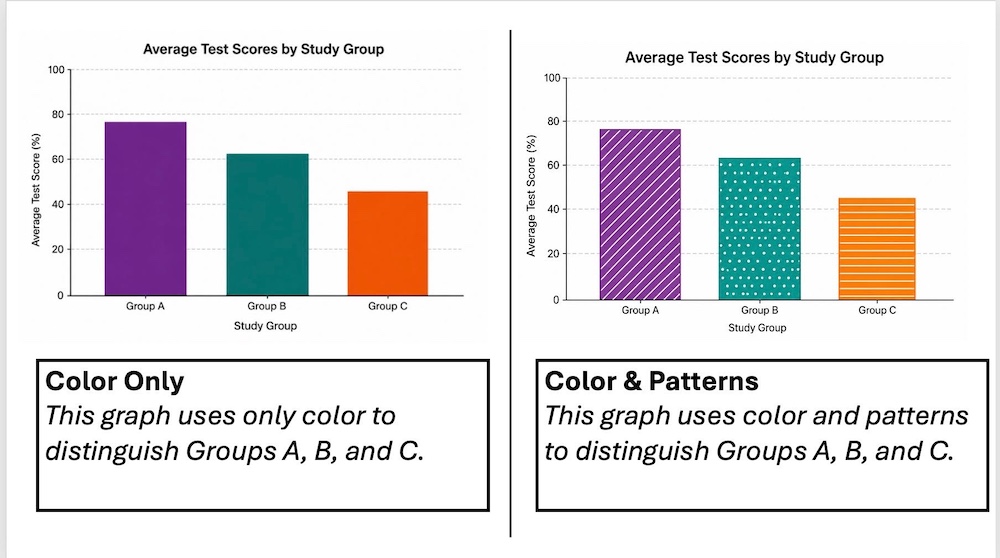
Color
- Rule: Text and graphics must have sufficient contrast with background colors. Do not rely on color alone to convey meaning—use labels, patterns, or other visual cues.
- Tip: Use a color contrast checker, such as WebAim Contrast Checker, when choosing colors—small adjustments can make text much easier to read for all users.
- How to: ULearn Insufficient Text Contrast with Background
- Example:
-
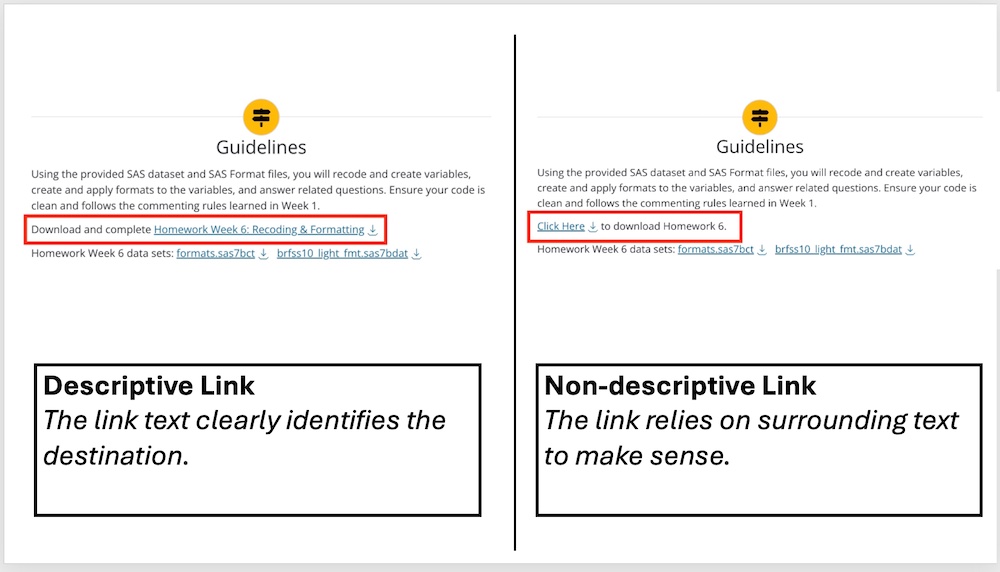
Links
- Rule: Link text must describe the destination. Avoid vague text like “click here.”
- Tip: Make links clear without relying on surrounding text.
- How to: ULearn Link Has NonDescript Text
- Example:
Level Three (Recommended)
-
Universal Design for Learning (UDL)
-
- Principles & Guidelines: UDL uses accessibility and inclusive design practices to reduce barriers and make learning experiences easier for all students to access, understand, and navigate.
- How to: UDL in Higher Ed
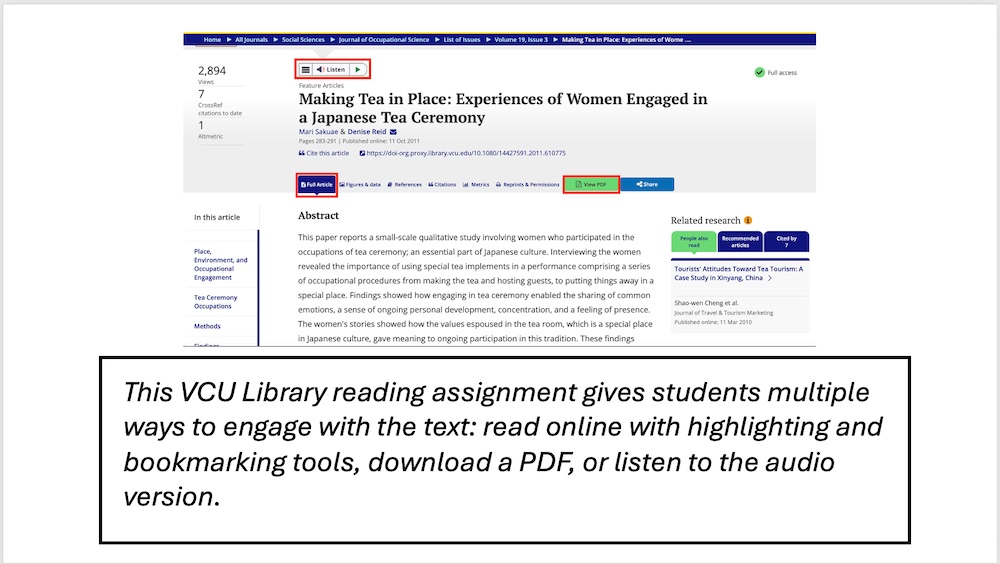
- Tip: Provide content in multiple formats (text, audio, video, visuals).
- Example: